Manage Larping settings
Larping's admin settings page lives in the Nextcloud administration panel and does one job: it tells Larping where each of its 9 entity types (ability, character, condition, effect, event, item, player, setting, skill) is stored — in Nextcloud's built-in database or in OpenRegister. The recommended setup is OpenRegister for everything; the internal option exists for tight installs that can't run OpenRegister.
Goal
By the end every entity type will have a data-source set, the OpenRegister-backed ones will have a register and schema picked, and the Larping app's lists and Add Item dialogs will work end to end.
Prerequisites
- Admin on the Nextcloud instance.
- The OpenRegister app installed and enabled, with at least one register available — Larping's installer ships a default
larpingapp_register.jsonthat auto-imports on install/upgrade, so a fresh install usually already has the right register and schemas. - A view on which entities you actually want under OpenRegister (the default is all of them).
Steps
-
Go to Settings → Administration → Larping. The page lists the 9 entity types as rows.
-
For each entity type, pick the data source — Internal (Nextcloud's database via Entity/Mapper) or Open Register (JSON object storage with schema validation). Internal is fine for small installs that don't want OpenRegister; Open Register is the recommended choice and unlocks audit trails, cross-object relations, and search.
-
For each row set to Open Register, pick the register from the dropdown. The schema dropdown filters to schemas on the chosen register. Pick the matching schema —
characterfor the character row,abilityfor the ability row, and so on. The default Larping register ships these named correctly so the pairing is mechanical.
-
Click Save All to persist. The page reloads with the saved selections; the config keys (
register,character_schema,player_schema,ability_schema,skill_schema,item_schema,condition_schema,effect_schema,event_schema,setting_schema) land under thelarpingappapp in Nextcloud'sIAppConfig.
-
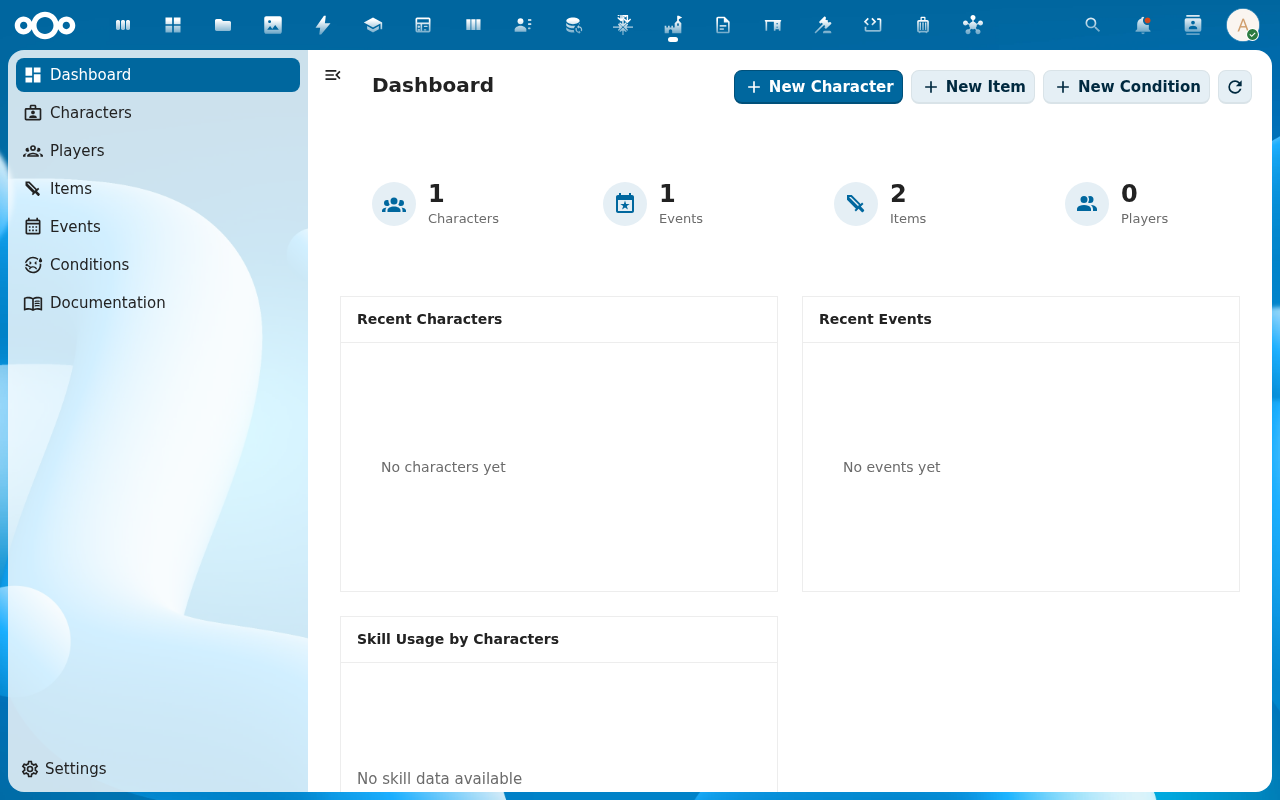
Open the Larping app and confirm: the Characters, Items, Events, Skills, Conditions lists load, and Add Item on each opens a dialog with real form fields. If you switched a row from Internal to Open Register, existing data is not migrated automatically — pre-existing internal rows stay where they were; new entries land in the configured source.
Verification
Each entity row shows its chosen data source; OpenRegister rows show the register and schema they map to. The Larping app loads its lists without an error banner. Add Item on a list opens a dialog with the schema's form fields populated. The audit trail on a newly-created character records the creation.
Common issues
| Symptom | Fix |
|---|---|
| Schema dropdown is empty for a row | The register you picked has no matching schema — either pick a different register (the default Larping register ships every schema) or run the larpingapp_register.json re-import from the OpenRegister side. |
| Larping lists work but Add Item dialog is empty | The schema mapping is set but the schema is empty (no fields) — re-import the Larping register configuration. |
| Saved settings revert on reload | The save call failed; check the Nextcloud log for a 4xx/5xx on POST /apps/larpingapp/api/settings. |
| Mixing Internal + Open Register breaks cross-entity relations | Relations between entities (character → skills, skills → effects) only resolve when both ends are in the same source. Pick one or the other for the whole chain. |
| Screenshots may be missing | App not yet installed in the test environment; rerun npm run test:e2e:docs once it is. |
Reference
- Admin settings reference — config keys, API endpoints, the underlying services.
- Open Larping for the first time — the user-facing check that the mapping works.
- Configure the game system — what to do once the mapping is in place.
- Register config JSON reference — the
larpingapp_register.jsonimport.